How to use Google Docs version history as ironclad evidence in AI detection appeals. Step-by-step guide to accessing, reading, and presenting your writing history.
Riley QuinnHead of Content at HumanLike
|
Updated March 30, 2026·23 min read
SchoolHUMANLIKE.PRO
Google Docs Defense
It starts with an email. Your professor asks you to come in and discuss your recent submission. The tone is measured, which is somehow worse than if it were blunt. You sit down in her office and she turns her monitor toward you. There is a screenshot. A detection tool has flagged your essay at 91% AI probability. She is not accusing you outright. But the number is sitting there in red, and the implication is clear.
You wrote that essay. You remember writing it. You remember the specific Tuesday night you spent on the third paragraph because the argument kept collapsing every time you tried to pin it down. You remember deleting an entire section on Thursday because you realized you had gotten the evidence sequence backward. You remember the final Sunday read-through where you caught three word choices that sounded wrong and swapped them out.
But you don't have a receipt. That is the problem. Your professor has a number. You have a memory. And memories don't hold up in academic integrity proceedings the way numbers do.
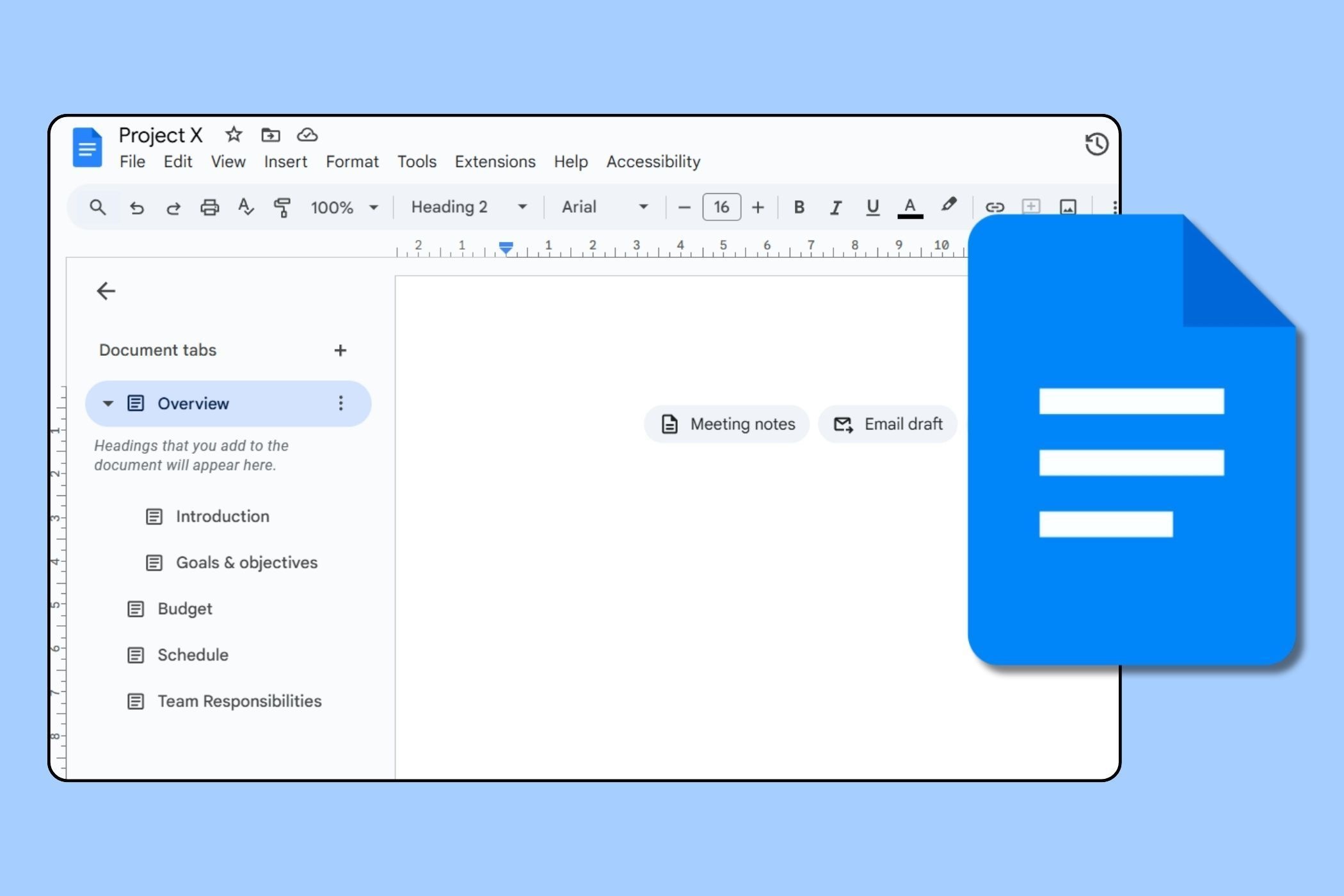
Then you open your laptop. The essay is still up in the tab where you left it. It's a Google Doc. You click File. You scroll to Version History. You click "See Version History." And the entire left sidebar fills up with timestamps. October 18th at 11:43 PM. October 19th at 2:07 AM. October 20th at 6:14 PM. October 21st at 9:52 PM. October 22nd at 11:30 AM.
You click on the 11:43 PM entry and the document shows you what it looked like at that exact moment. You click the next one. You can see what changed. The paragraph you struggled with is there, mid-thought, incomplete, broken exactly the way you remember it being broken. There is your Tuesday night, timestamped and color-coded.
🔑Version History Is Server-Side Evidence
Unlike screenshots or file metadata on your own computer, Google Docs version history is stored on Google's servers. You did not create it. You did not control it. That makes it significantly harder to dismiss as fabricated.
No AI generation session looks like this. AI produces a finished product. It does not produce five days of a document getting progressively more coherent through dozens of small and large edits. Version history is the closest thing you have to a surveillance camera for your own writing process. And if you know how to read it and present it, it is one of the strongest forms of evidence you can bring into an academic integrity appeal.
What Google Docs Version History Actually Records
Most people have a rough sense that Google Docs saves automatically. What most people don't know is how granular that saving is, or exactly what information is captured every time a save state is recorded. Understanding this matters because when you present version history as evidence, you need to be able to explain what the committee is looking at.
How Auto-Save Works at the Technical Level
Google Docs saves your document continuously as you type. There is no manual save button because the system is constantly syncing your local edits to Google's servers in the background. Every change you make is uploaded as a delta, a compressed record of what changed rather than a full copy of the document. These deltas are what gets stitched together to reconstruct any historical version of the document.
Google groups these continuous saves into version entries. The grouping logic is session-based: when you open a document, start editing, and then stop or close the tab, that constitutes a session. Google consolidates all the saves within that session into a single version history entry. If you come back the next day and edit again, that is a new entry. This is why version history shows you distinct blocks of editing activity rather than thousands of individual keystrokes.
Named Versions vs. Auto-Save Versions
There are two types of entries in version history. Auto-save versions are created automatically by Google during and after editing sessions. These are the entries labeled only with a timestamp and your name. Named versions are entries you create manually by going to File, Version History, and selecting "Name Current Version." You can give these a label like "First Draft" or "After Feedback" that will appear in the history alongside the auto-save entries.
For the purposes of an appeal, auto-save entries are actually more valuable as evidence than named versions. Named versions require a conscious decision to create, which means they are easy to retroactively game if someone were trying to fabricate a writing history. Auto-save entries happen whether or not you do anything, and they capture activity in real time. That is why they carry more credibility.
How Far Back Does History Go
Google keeps version history indefinitely for active Google accounts. There is no expiration date. A document you created three years ago still has its full version history available if you have not deleted the document. The only ways version history disappears are if you delete the document, if the document is moved to Trash and then permanently deleted, or if you manually clear history (which requires going through a specific steps process that most users have never done).
ℹ️The Key Technical Fact to Remember
Version history is stored on Google's servers, not yours. The timestamps are generated by Google's infrastructure, not by your computer's clock. This means they cannot be manipulated by you in any way that Google would not detect. That server-side origin is what gives the evidence its credibility.
Why It Works
Why Version History Carries So Much Weight as Evidence
Academic integrity committees see a lot of evidence in appeals. They see screenshots. They see character witnesses. They see declarations that a student wrote something themselves. Most of that evidence has an obvious problem: the person with the most motivation to fabricate it is exactly the person presenting it. Version history is different.
It Is Extremely Difficult to Fabricate
The version history you are looking at in your Google Doc was written to Google's servers during your editing sessions. The timestamps were not generated by your computer. They were generated by Google's infrastructure at the moment each sync occurred. You cannot go back and change them. You cannot insert fake sessions. You cannot edit what a historical version looked like without that edit being recorded as a new change that postdates the original.
A motivated person with advanced technical knowledge could theoretically try to manipulate version history through the Google Drive API, but doing so would require a level of effort that is far beyond what most students are capable of and would likely leave forensic traces. For all practical purposes, the version history you are presenting to an academic integrity committee is what actually happened.
It Shows Process, Not Just Product
AI detectors evaluate the final text. They look at the output and make a judgment about whether it was likely generated by an AI. But they have no visibility into how that output was produced. A human writer who happens to produce polished, structured prose can get flagged just as easily as someone who actually used AI assistance.
Version history bypasses this problem entirely because it does not care about the final output. It shows the process. And the writing process of a human being looks fundamentally different from the way AI-generated text would appear in a document. Humans write in fragments. They stop mid-sentence. They delete the previous paragraph and start over. They add a word, delete it, add a different word. They restructure the argument after they get halfway through the body and realize the conclusion has to come first.
The Human Revision Pattern Is Distinctive
If someone were using AI to write their essay, the most common pattern would be: paste in a large block of generated text in a single editing session, then make small cleanup edits afterward. Version history would show a document that went from nothing to nearly complete in one session, followed by minor tweaks. Compare that to a document where the thesis statement was rewritten twice, where an entire section was deleted and replaced with a different argument, where small additions and deletions appear scattered across dozens of individual versions over several days. The second pattern does not look like AI assistance. It looks like someone working.
📊What Committees Are Actually Looking For
Academic integrity committees evaluate appeals based on the totality of evidence. A single strong piece of evidence like version history rarely decides a case alone, but it can serve as the anchor piece that gives your other evidence context and credibility. A version history that clearly shows human writing process significantly increases the weight of everything else you present.
How to Access and Read Your Version History
1
Open your document
Go to Google Drive (drive.google.com) and open the document you want to review. Make sure you are logged into the Google account that owns or collaborated on the document.
2
Navigate to the Version History menu
Click "File" in the top menu bar. In the dropdown, hover over "Version History." A submenu will appear with two options: "Name Current Version" and "See Version History." Click "See Version History."
3
Read the version panel
The document editor will shift to a split view. The document itself takes up most of the screen. On the right side, a panel shows a chronological list of version entries, with the most recent at the top. Each entry shows a date and time, and the name of the account that made the edits. Click any entry to see the document as it looked at that moment.
4
Understand the color coding
When you click a version entry, the document view shows changes overlaid in color. Green text was added between the previous version and this one. Red strikethrough text was deleted. Text that appears without any color highlight did not change.
5
Navigate between versions
Click through the version entries from oldest to newest to watch the document develop over time. Start from the very first entry at the bottom of the list, which will show you the earliest recorded state of the document. Working your way up gives you a narrative of the writing process.
6
Expand grouped sessions
Some version entries may show a small expand arrow. Clicking this reveals the individual sub-saves within that editing session, allowing you to see even more granular change detail. This is useful for showing exactly how a paragraph developed within a single session.
What a Normal Human Writing Session Looks Like
When you look at version history for a legitimately human-written essay, you are going to see a specific kind of picture. The earliest versions will often be sparse: maybe just a title, a rough thesis statement, and some bullet points or incomplete sentences where the writer was sketching out structure. Over subsequent sessions, you will see the document fill in gradually. Paragraphs will appear, then get extended. Some sections will appear and then disappear entirely, replaced by different content. Individual sentences will be revised multiple times.
You will also typically see changes in the density of editing activity. Some sessions will have a lot of changes concentrated in one section, suggesting the writer was focused on that area. Other sessions might show small scattered edits throughout, consistent with a proofreading pass. The final session before submission often shows small tweaks: fixing typos, adjusting word choices, cleaning up formatting.
This irregular, non-linear pattern is the hallmark of human writing. Writers do not start at the beginning and write linearly to the end. They jump around. They go back. They change their minds. If your version history shows this kind of pattern, it is already telling a compelling story.
💡Export the Version History Timeline
You cannot directly export version history as a file from Google Docs. Your best approach is to take a series of screenshots from oldest to newest version, capturing the timestamp visible in the panel alongside the document view showing changes. Organize these screenshots numerically and label each one with the date and session number.
Version History Compared to Other Types of Evidence
When you are building an appeal, you are assembling a case from multiple evidence types. Version history is not the only form of evidence available to you, but understanding how it compares to other options helps you prioritize your time and present the strongest possible case.
Evidence Type
Fabrication Risk
Process Evidence
Timestamp Reliability
Overall Weight
Google Docs Version History
Very Low (server-side)
Strong — shows full writing process
High — Google infrastructure timestamps
Very High
Local File Metadata (Word, Pages)
Moderate — metadata can be altered
Weak — only shows save events
Moderate — tied to device clock
Moderate
Email Drafts Sent to Self
Low — server-side timestamps
Weak — only shows what you sent
High
Moderate
Library Computer Print Records
Very Low — institutional records
None — shows only that you printed
High
Low-Moderate
Peer Review or Writing Tutor Records
Low
Moderate — third-party interaction
Moderate — depends on tutor's records
Moderate-High
Witness Statement (roommate, etc.)
High — easily fabricated
None
None
Low
Course Notes and Research Materials
Moderate
Moderate — shows research process
Low
Moderate
Browser History
Moderate — can be cleared
Moderate — shows research
Moderate — device-dependent
Low-Moderate
The combination of low fabrication risk and strong process evidence is what distinguishes Google Docs version history from every other evidence type on the list. Most evidence either shows that something happened (you printed something, you visited the library) without showing the process, or it shows process but is easy to manipulate (browser history, local file metadata). Version history does both: it shows the actual writing process in detail, and it is stored in a way that is not under your control.
Building Evidence
Preparing Your Version History Evidence for an Appeal
Accessing your version history is step one. Turning it into a coherent, persuasive piece of evidence is a different task. Academic integrity committees are not going to sit down with your laptop and scroll through your version history themselves. You need to present it to them in a format that is easy to read, easy to follow, and clearly supports your account of how the writing happened.
What to Screenshot and How to Organize It
Your goal is to create a visual record that shows the document evolving over time. Take a screenshot of the full version history panel showing all the timestamps. This gives the committee an overview of how many editing sessions there were and when they occurred. Then take individual screenshots for the most important version entries: the first version showing the document's origin, any version that shows a major structural change, and the final version before submission.
For each screenshot, make sure the timestamp is visible in the version history panel on the right side of the screen, and the document with its change highlights is visible on the left. If the changes are hard to see at the full screen scale, zoom into the section with the most significant changes before screenshotting.
Name your screenshot files systematically. Something like "version-01-oct18-1143pm.png" lets anyone reviewing the files understand the sequence without having to read the content of each image. Number them in chronological order from first to last.
Creating a Written Narrative
Screenshots alone are not enough. You need to write a brief explanation that walks the committee through what the screenshots show. This does not need to be long. Two to three pages of clear, factual description is plenty. For each major version entry you are presenting, write a paragraph explaining what you were doing at that point in the writing process. Connect it to the specific changes visible in the screenshot. Be specific about what the changes show rather than making general claims about having worked hard.
For example, instead of writing "This screenshot shows that I was working on the essay on Tuesday night," write: "The version from October 19th at 11:47 PM shows the addition of the second body paragraph, which was not present in the previous version from 9:32 PM. The paragraph was not complete at this point; the third sentence ends with a fragment, indicating the session was interrupted before I finished the thought. This matches my recollection of being distracted by a phone call from my roommate around midnight and resuming work the following morning."
Calculating Total Editing Time
One useful number to include in your appeal is a rough estimate of your total editing time across all sessions. You can calculate this by adding up the elapsed time between the earliest timestamp in each session and the latest timestamp in that same session. This is not perfectly precise since version history does not record every single minute, but it gives a reasonable floor estimate.
6-8 hoursTypical editing timeA legitimate essay writing process often totals 6-8 hours across multiple sessions — a number that immediately contradicts the 'AI-generated' narrative
What Version History Cannot Prove
This is one of the most important sections in this guide. Being honest about what your evidence cannot prove is not a weakness in your appeal. It is a sign of credibility. Academic integrity committees are experienced enough to know when someone is overstating their case, and overstatement damages your credibility more than honest acknowledgment of limitations does.
The Core Limitation
Google Docs version history proves that a human being typed text into your document across multiple sessions over time. It does not prove that the text was originally composed by you. If you generated text using an AI tool and then typed it manually into Google Docs, that activity would look essentially identical to version history as if you had composed the text yourself. The version history would show you typing, but it would not show where the text came from before you typed it.
This is a real gap. A determined committee member could point to this and say: "We cannot rule out that the student generated AI output, then typed it word for word into the document to create a misleading version history." This scenario is unlikely for any significant piece of work because the effort required is enormous, but it is not impossible.
Why Knowledge Demonstration Is Essential
Because version history alone cannot close the loop, a strong appeal combines it with a demonstration of your understanding of the content. If you can discuss the arguments in your essay, respond to questions about the sources, explain your reasoning for the structural choices you made, or write a short additional piece on the same topic to demonstrate your knowledge, that performance evidence addresses exactly what version history cannot.
Some institutions will offer you the opportunity to defend your work verbally in a meeting. Treat this as an asset, not a threat. Come prepared to talk about your essay as if it is something you genuinely care about. Know your sources. Know your argument. Know why you made the choices you made.
⚠️Do Not Overstate Your Evidence
Never claim in your appeal that version history proves you did not use AI. It proves you wrote actively in the document over multiple sessions. That is a strong argument. It is not an absolute proof. Overstating its strength gives the committee a reason to discount both the evidence and your credibility.
Building Your Case Before You Need It
The best time to think about version history as evidence is before you are ever accused of anything. If you build the right writing habits now, every essay you write from this point forward will automatically generate strong version history evidence without any extra effort.
Always Write First Drafts in Google Docs
The single most impactful habit you can develop is writing directly in Google Docs from the very beginning of the drafting process, not just for final cleanup. If you brainstorm in Google Docs, your earliest, roughest thinking is captured in version history. That early roughness is what distinguishes your writing history from a polished AI output that was typed in after the fact.
This does not mean you cannot use other tools for research or note-taking. Take your notes in any application you like. But when you sit down to write the actual draft, open a Google Doc and start there. Even if your first draft is terrible, even if it is mostly bullet points and half-sentences, put it in the Doc. That messy version is evidence.
Create Named Versions at Each Major Stage
Get into the habit of creating a named version every time you finish a significant phase of work. When you finish your first complete draft, name it "First Draft" using File, Version History, Name Current Version. When you finish a major revision, name it "After Revision." When you complete your proofreading pass, name it "Pre-Submission." These named versions create clear signposts in your history that are easy for a committee to follow.
Leave Comments in the Document as You Write
Google Docs comments are timestamped and attributed to your account. If you use comments to leave yourself notes as you write, such as marking a section that needs more evidence, flagging an argument you want to revisit, or noting a source you need to look up, those comments create additional proof of your real-time thinking process. They are harder to fake retroactively than any other form of evidence because each comment is stamped with the exact time you added it.
Share Drafts with Collaborators or Tutors
If you have your essay reviewed by a peer, a writing tutor, or a study partner, share the actual Google Doc with them rather than emailing them a copy. When someone else views or comments on your document, those events are recorded in Google Drive's activity log with their account information and a timestamp. A writing tutor's comments appearing in your document three days before the submission deadline is a powerful piece of corroborating evidence that independently confirms your writing was in progress well before it was submitted.
💡One Habit to Start Today
The next time you start any writing assignment, open a new Google Doc before you do anything else. Title it with the assignment name and date. Type even one sentence or bullet point. That action starts your version history. Every subsequent session builds on it automatically.
Common Mistakes Students Make with Version History Evidence
⚠️Mistake 1: Presenting raw screenshots without context
Walking into an appeal with a folder of screenshots and handing them to a committee member without explanation is not evidence presentation. It is a confusing jumble of images that the committee has to do work to interpret. Always pair your screenshots with a written narrative that explains what each one shows.
⚠️Mistake 2: Only showing the most recent sessions
Some students focus on showing the final editing sessions because those feel most relevant. But the earliest sessions are actually more important. The first version of the document, showing the document at its roughest state, is what establishes that the writing developed organically from the beginning.
⚠️Mistake 3: Claiming version history proves more than it does
Saying "my version history proves I did not use AI" is an overreach that an experienced committee member will immediately flag. Make the accurate claim: "My version history shows sustained, incremental editing activity across multiple sessions that is consistent with human authorship and inconsistent with AI-assisted generation followed by minor cleanup."
⚠️Mistake 4: Neglecting to calculate total session time
One of the most underused elements of version history evidence is the simple arithmetic of total editing time. Add up the elapsed time across all your sessions. If you spent a cumulative total of eight hours writing a 1,500-word essay, present that number. It quantifies your effort in a way that pure screenshots do not.
⚠️Mistake 5: Failing to address gaps proactively
If your version history has a gap that looks like a large block of text appeared all at once, do not ignore it hoping the committee won't notice. Address it in your narrative before they ask about it. Any honest explanation is better than silence, because silence invites the committee to fill in the blank with the worst possible interpretation.
⚠️Mistake 6: Not connecting version history to your appeal timeline
Your appeal letter should establish a timeline: when the assignment was given, when you started working on it, when your major drafting sessions occurred, and when you submitted. Your version history evidence should map directly onto that timeline. Inconsistencies between your narrative and your evidence are a credibility problem.
⚠️Mistake 7: Waiting too long to access the history
While version history does not expire, documents that are deleted do lose their history. If you hear even a rumor that your submission is under review, access your version history immediately and save copies. Do not delete the document, do not move it to a folder with shared settings that might change access.
The Process
The Complete Process: From Accusation to Presenting Your Evidence
1
Do not panic or respond immediately
When you receive notification of an academic integrity concern, your instinct will be to respond right away and explain yourself. Resist this. Take 24 hours to gather your evidence first. Emotional, defensive responses sent without evidence weaken your position.
2
Access and review your version history immediately
Open the document in question and navigate to File, Version History, See Version History. Read through the full history from oldest to newest. Note which sessions show the most substantive work, where the document was clearly in a rough or incomplete state, and where the most significant revisions occurred.
3
Document the version history before anything else
Take a full screenshot of the version history panel showing all timestamps. Then work through the history and take targeted screenshots of the most significant versions: the first version, any version showing major structural changes, and any version where the document is clearly in an early, unfinished state.
4
Calculate your total editing time
Go through each editing session and note the start time (earliest timestamp) and end time (latest timestamp within that session). Add up the elapsed time across all sessions. Write down this total. It will be a key number in your appeal.
5
Review the document's creation date
In Google Drive, right-click the document and select Details to see the file creation date. Make sure this date is consistent with when you say you started working on the assignment. Note the creation date in your appeal materials.
6
Check for supplementary Drive evidence
Look at the Drive activity log for the document. Are there sharing events from when you sent a draft to a tutor or peer reviewer? Are there viewing events from other accounts? Note any events that corroborate your account of how you worked on the essay.
7
Gather supporting evidence from other sources
Review your browser history for research sessions related to the essay topic. Check your email for messages to your professor or writing center about the assignment. Look for any notes, drafts, or outlines you created in other applications. Do not discard any evidence that supports your timeline.
8
Write your version history narrative
Write a two to three page document that walks through your version history evidence. For each significant session, explain what you were doing at that stage of the writing process. Describe what the changes visible in the screenshot show. Be specific and factual.
9
Draft your appeal response
Your appeal response should open by stating clearly that you wrote the submitted work. Acknowledge the AI detector's score as a concern, but position it as preliminary and inconclusive. Introduce your version history evidence as primary documentation of your writing process.
10
Prepare your verbal defense
If you will have a meeting, prepare to discuss the essay content itself. Know your sources. Know your argument. Anticipate questions about why you made specific structural or argumentative choices. Being able to speak knowledgeably about the work closes the gap that version history cannot close on its own.
11
Submit your appeal with all evidence organized
Compile your appeal letter, your version history narrative, your screenshots in numbered order, and any supplementary evidence into a single organized submission. Label everything clearly. Include a cover page that lists all the documents you are submitting.
12
Follow up appropriately
After submitting your appeal, give the institution the time they specify to review it. If you have not received a response within their stated timeframe, follow up once with a polite inquiry. If your institution allows you to be accompanied by a student advocate or advisor to any meeting, consider using that option.
Case Studies
Three Real-World Scenarios: Version History in Action
Scenario 1: The Undergraduate Literature Essay
A junior English student submits a 3,000-word essay on postcolonial themes in Chinua Achebe's work. The detection tool flags it at 79% AI probability. The student's professor sends a formal inquiry. The student's version history shows fourteen separate editing sessions over eight days, beginning two days after the assignment was posted. The first version contains a rough outline with bullet points and partial sentences. The second and third sessions show the first body paragraphs developing, with multiple instances of sentences being deleted and rewritten. One major session on day five shows the student deleting the entire third section and replacing it with a different argument, suggesting a significant intellectual change in direction. The total editing time calculated from session timestamps is approximately nine hours.
The student presents the version history alongside three other pieces of evidence: browser history showing research on Achebe's biography and postcolonial theory during the writing period, an email to their professor asking for clarification on the citation format three days before the deadline, and a comment thread in the Google Doc with their study partner who read a draft and left questions. The appeal committee reviews the evidence and the academic integrity concern is resolved in the student's favor. The version history is the anchor piece. The other evidence corroborates the timeline and shows external intellectual engagement.
Scenario 2: The Graduate Research Proposal
A PhD candidate submits a 5,000-word research proposal for a departmental review. One committee member raises a concern about the writing style being unusually polished and suggests it may have been AI-assisted. The candidate's version history is extensive: thirty-one editing sessions across three weeks. The history shows the proposal beginning as a one-page outline with research questions, gradually developing through multiple drafts as the literature review and methodology sections were written and revised. There are clear signs of feedback incorporation: sections that were short in one version and significantly expanded in the next, matching the timing of a scheduled meeting with the candidate's advisor whose comments appear in the document.
Critically, the version history shows two instances where the candidate deleted entire pages and started those sections from scratch. This kind of wholesale deletion and recreation is strongly characteristic of human writing, particularly the kind that happens when a writer receives substantive feedback and realizes a section needs rethinking. The candidate presents this evidence alongside notes from advisor meetings and the committee resolves the concern. The committee specifically notes in its written response that the version history showing sustained development over three weeks, with evidence of advisor feedback integration, was determinative.
Scenario 3: The Student with Incomplete History
A college sophomore is flagged for a history essay submitted at the end of the semester. The student did most of their initial drafting in Microsoft Word on a laptop without internet access while traveling for a family situation. They later transferred the content into Google Docs to finalize formatting and add citations. The Google Docs version history only covers the last two editing sessions, which show citation work and minor proofreading edits. It does not show the earlier drafting work.
This student cannot rely primarily on version history. Instead, they pivot to other evidence: the Word document on their laptop, which has file metadata showing it was created and edited during the travel period, their family travel itinerary corroborating the circumstances, and research notes in a physical notebook from library visits. They explain the incomplete version history proactively in their appeal, acknowledging exactly what it shows and what it does not. They present the Word file metadata alongside a scan of several pages of handwritten research notes. The combination of honest acknowledgment of the limitation and alternative evidence achieves the same outcome. The key lesson: when version history is weak, acknowledge it directly and redirect to whatever evidence is strongest.
Key Takeaway
Google Docs version history is server-side, timestamp-authentic evidence that shows your actual writing process — the drafts, deletions, and revisions an AI detector cannot see. It does not prove you did not use AI, but it shifts the probability calculation decisively in your favor. Start every essay in Google Docs. Leave comments. Name major versions. Share drafts with tutors. These habits cost nothing and build a defense packet automatically for every future assignment you submit.
Frequently Asked Questions
Can Google Docs version history be deleted or manipulated by the document owner?+
Version history cannot be deleted by accident and is not easy to clear intentionally. Google does not provide a one-click option to delete version history. To remove version history, you would have to make a copy of the document (File, Make a Copy), which creates a new file with no prior history but also means the original document with its full history still exists in your Drive. Academic integrity committees are aware of this, and presenting a copy of a document as evidence rather than the original would immediately raise questions. The original document's version history, stored on Google's servers, is effectively outside your control once it has been written there.
What if I do not have a Google account and I wrote in Microsoft Word or Apple Pages?+
Microsoft Word and Apple Pages both maintain file metadata that records creation and modification dates, but this metadata is stored locally on your device and tied to your device's clock. It is less credible as evidence than Google Docs version history because it is more susceptible to manipulation. If you work in Word, consider emailing yourself draft copies of your document at significant stages, or uploading drafts to OneDrive or Google Drive as you complete them. The upload timestamps on those cloud services are server-side and carry more credibility. Going forward, switching to Google Docs for academic writing will give you the strongest possible version history evidence automatically.
How do I know if my version history is strong enough to use as primary evidence?+
Strong version history for an appeal has several characteristics: multiple editing sessions across different days, evidence of the document in an early rough state (outline, incomplete sentences, placeholder notes), at least one instance of significant text deletion and rewriting showing intellectual revision, and timestamps that are consistent with the assignment timeline. If your version history shows only one or two sessions close to the submission date, it is weaker evidence. It does not make your appeal impossible, but you will need to lean more heavily on supplementary evidence. Review your history critically before deciding how prominently to feature it.
Will the committee actually be able to verify my version history, or do they just have to take my word for it?+
Committees can verify version history in several ways. They can ask you to demonstrate it live in a meeting by opening the document and navigating through the history in front of them. If they have reason to doubt screenshots, they may ask for access to the original document. You could share the document with a committee member's Google account in view-only mode, allowing them to independently confirm what the history shows. Some institutions have technical staff who can assist with this verification. Never present fabricated or edited screenshots of version history. The consequences of being caught fabricating evidence in an academic integrity proceeding are substantially worse than the original accusation.
What if I started the document in Google Docs but then switched to another application to write?+
If you started in Google Docs, transferred work to another application, wrote there, and then pasted the final content back into Google Docs, your version history will show a gap in the middle. The early work in Google Docs will be captured, then a large block of text will appear in a single session when you pasted the completed content back in. Be honest about this workflow in your appeal. Explain that you drafted in the other application for whatever reason (for example, you preferred that tool's interface or needed to work offline) and then brought everything back together in Google Docs. Support this explanation with evidence from the other application: file metadata from Word, Notion page creation dates, or screenshots from your note-taking app. Transparent explanation of a non-standard workflow is far more credible than a misleading framing of what your version history shows.
My version history shows I was editing at 2 AM. Will that look suspicious?+
Late-night editing sessions are completely normal for students and carry no inherent suspicion. In fact, a 2 AM editing session that shows you working through a difficult paragraph, deleting and rewriting multiple times, is strong evidence of genuine human effort. It is much more consistent with a student under deadline pressure than with AI-assisted writing, which does not require staying up late to produce. If anything, sessions at unusual hours that show substantial revision activity tell a particularly convincing human story. Include them in your evidence.
Can I use version history as evidence if someone else also has editing access to the document?+
Yes, but you need to be prepared to address the multi-author context. Version history in a shared document shows different colors for different authors' changes. When you present screenshots, make sure it is clear which edits are attributed to your account and which belong to other collaborators. If a classmate peer-reviewed your work and left tracked changes or suggestions, their activity will appear in the history. This is fine and actually adds credibility if the collaborator's activity shows them reviewing your draft (leaving comments, suggesting edits) rather than contributing original writing. Be prepared to explain the nature of each collaborator's involvement.
Does version history help if I used a grammar tool like Grammarly on my essay?+
Using Grammarly or similar grammar correction tools is generally permitted in academic writing unless your assignment explicitly prohibits it. These tools do not generate content. They flag potential errors and suggest corrections, which you then accept or reject. Your version history will show the accepted corrections appearing as small edits, typically scattered throughout the document rather than concentrated in one session. This pattern of small grammar fixes distributed across the document is consistent with the use of editing tools and does not look like AI text generation. If your institution asks about tool use in your appeal, be honest: grammar tools are editing aids, not text generators, and are in a different category from AI writing tools.
How long does it typically take for an AI detection appeal to resolve?+
Resolution timelines vary significantly by institution. Some colleges resolve appeals within a week to ten days. Others have formal academic integrity processes that can take four to eight weeks, especially if the matter goes to a committee hearing rather than being resolved at the instructor level. Ask your institution for their stated timeline at the beginning of the process and follow up once if it passes without resolution. During this period, continue attending class and meeting your academic obligations as normally as possible. Abrupt changes in your academic behavior during an open inquiry are noticed.